
QOps 3.1 brings a new feature: an MCP server that gives an AI assistant the tools to work with your QOps repositories and Qlik apps. The easiest way to try it is the chat in the Portal, where you ask in plain words instead of looking for the right command: "Which apps are in this repository?" "Make a sheet with Total Sales and Order Count as bars and Average Order as a line, by Region." "Run Prepare, then Build." The server runs on your own machine and uses the connection profiles and licence you already have. Your Qlik credentials are never passed to the assistant.
Try it in three steps
1. Update to 3.1
Run QOps-Update, then start the Portal with QOps-StartPortal.
2. Add your key in Settings
The chat uses your own AI account, so it needs a key before it can answer. Under Settings, Global, Chat you choose Claude or Gemini, pick a model and store your own API token. The token is kept encrypted on your machine and is sent only from the Portal's own server to the provider you chose. It never reaches the browser.
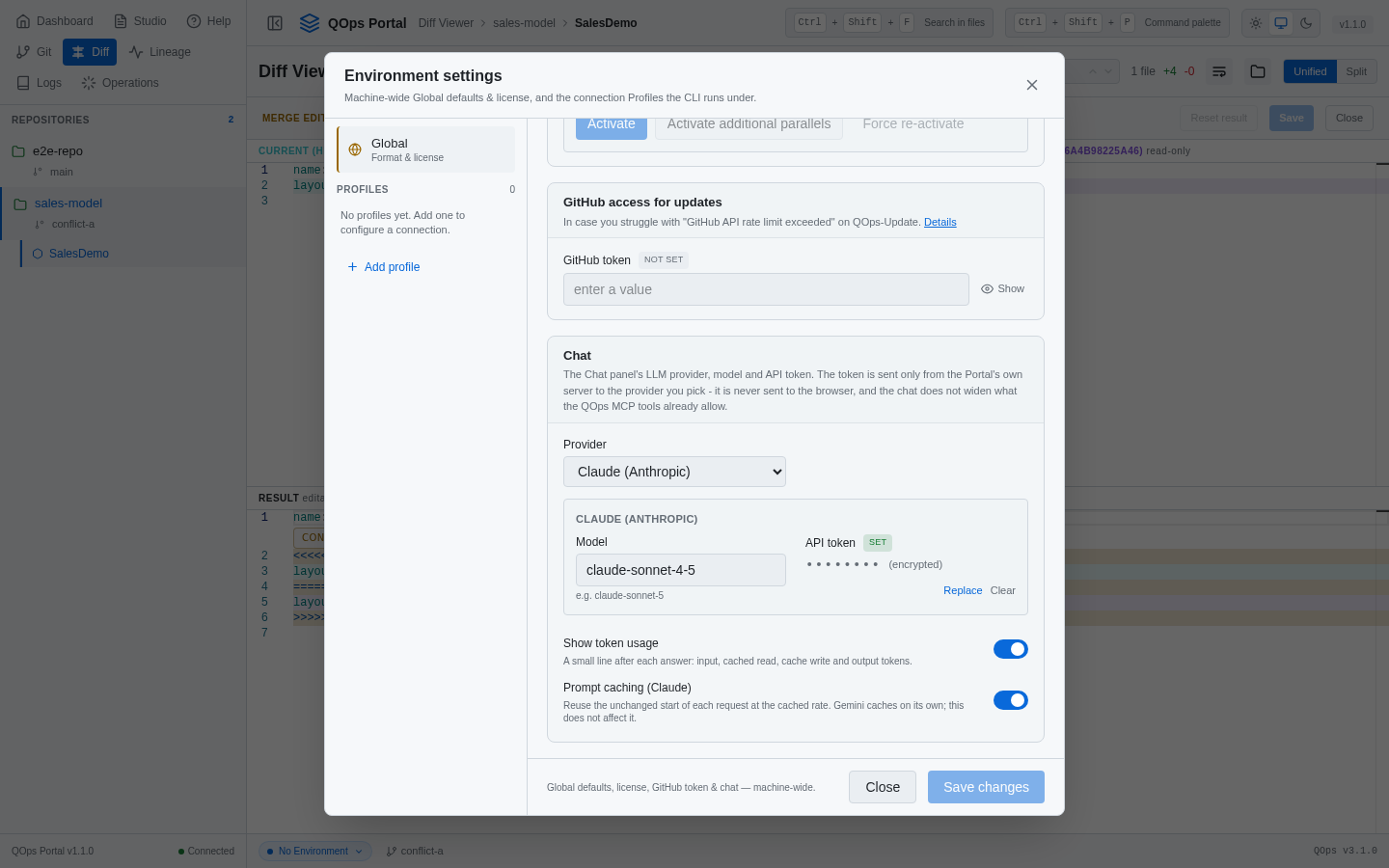
- Provider and model per chat. The header of each chat has a provider and model picker, filled from the provider's own model list. Change them halfway through a conversation if you like.
- Prompt caching. On by default for Claude, so long chats use fewer full-price tokens. You can switch it off.
- Token line. Turn on Show token usage and each answer ends with a short line showing the input, cached, and output tokens it used.
- Saved chats. Chats are saved, listed under History, and can be copied or downloaded as Markdown.
3. Open the chat from the Dashboard or Studio
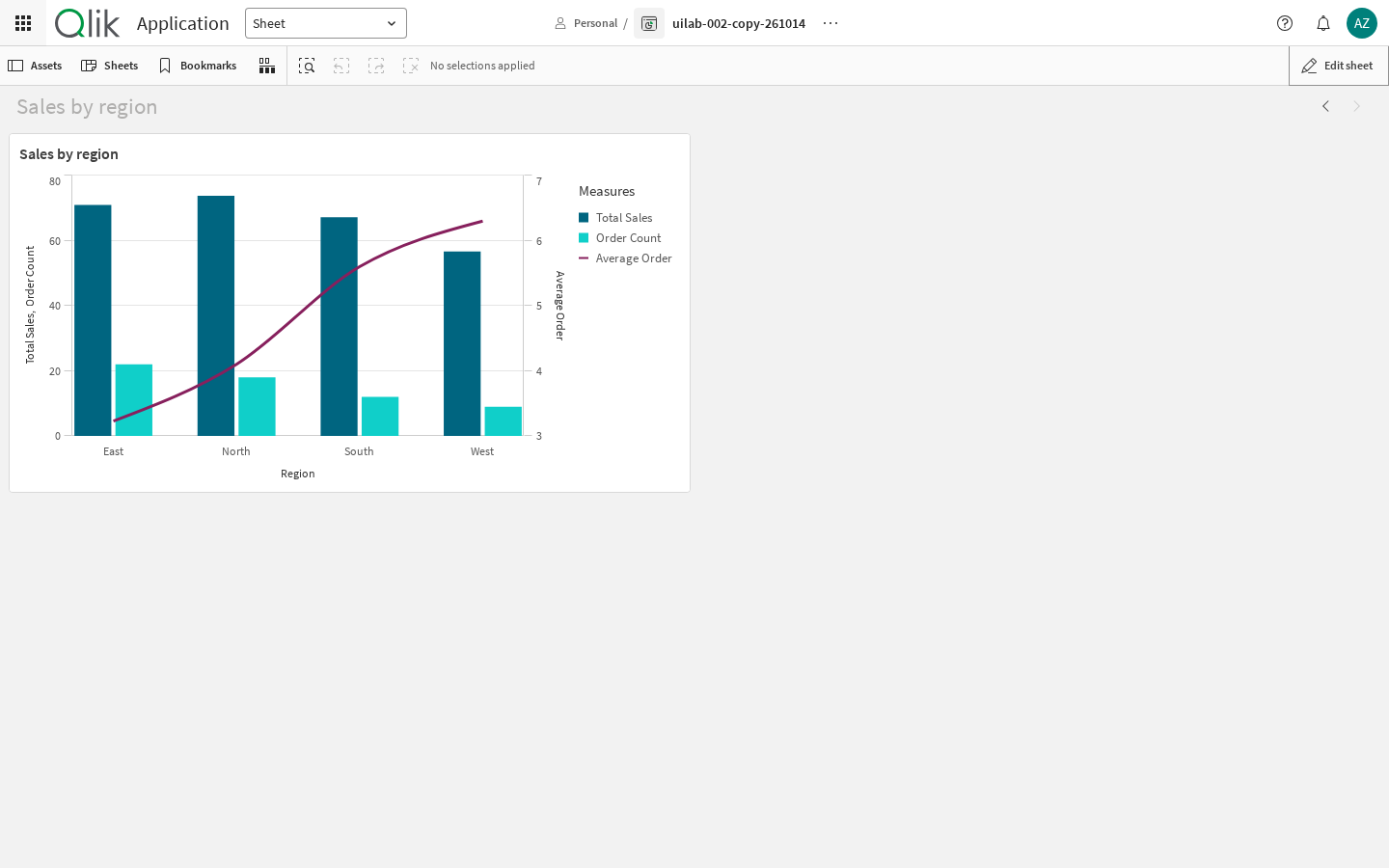
Open the Chat panel from the Dashboard, or dock it beside the editor in Studio so it stays open while you work. Then ask for a sheet in plain words, for example: "Create a new sheet called Sales by region with a combo chart by Region: Total Sales and Order Count as bars, Average Order as a line."
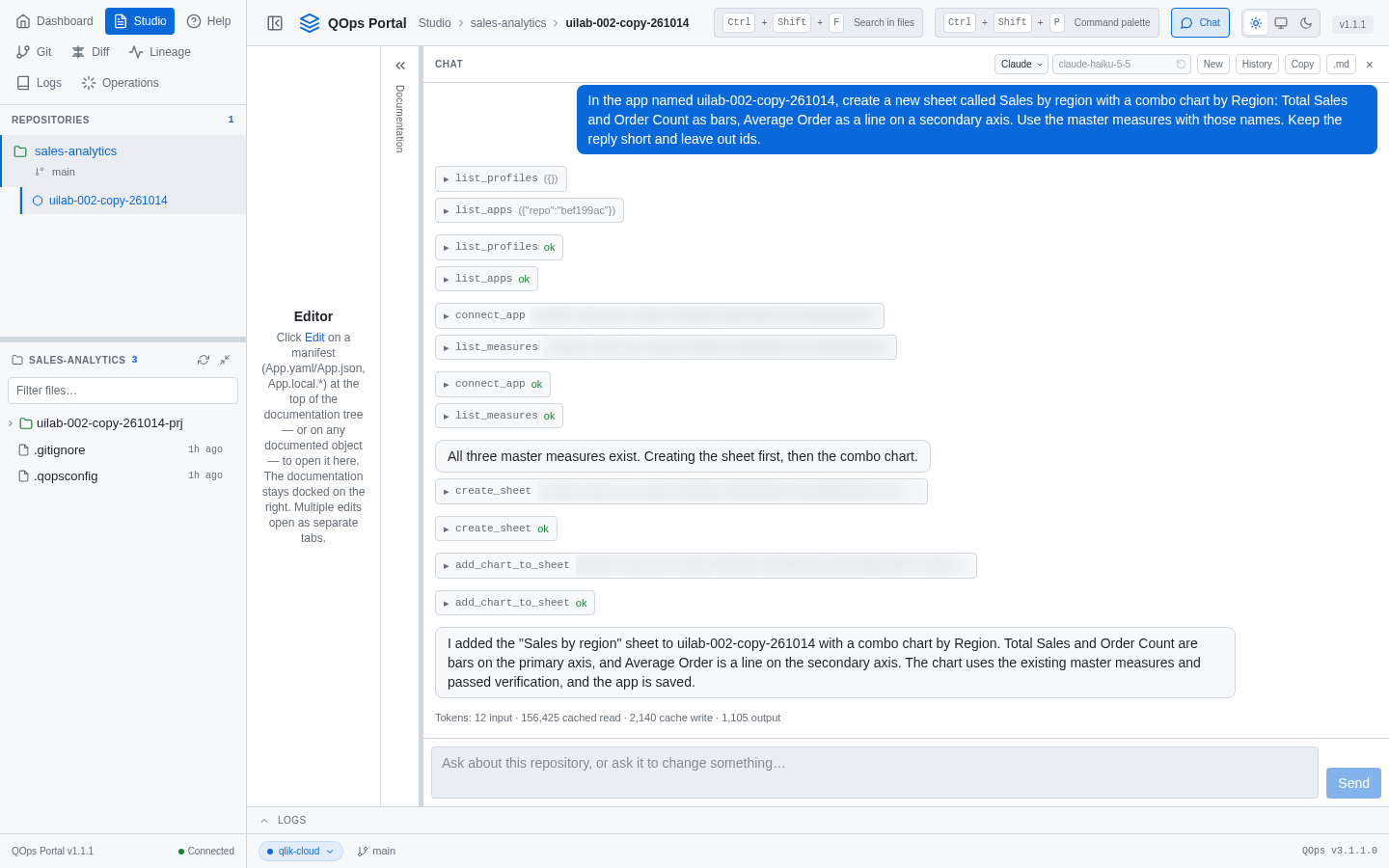
In the example above the request names the app and the master measures the way you would say them: Total Sales, Order Count and Average Order. The assistant finds the app in your repository, looks up the measures by name, creates the sheet and the chart, and reads the result back before it answers. Each tool step it took is listed in the chat, so you can see what was done.
Or connect your own assistant
You can also chat from your own client. If you prefer Claude Desktop, Claude Code or Cursor, you can connect them to the same tools. Run QOps-StartPortal once. It writes a small launcher file to a fixed place and prints its path. Point your assistant at that launcher. Because the launcher never moves, the connection keeps working after QOps-Update.
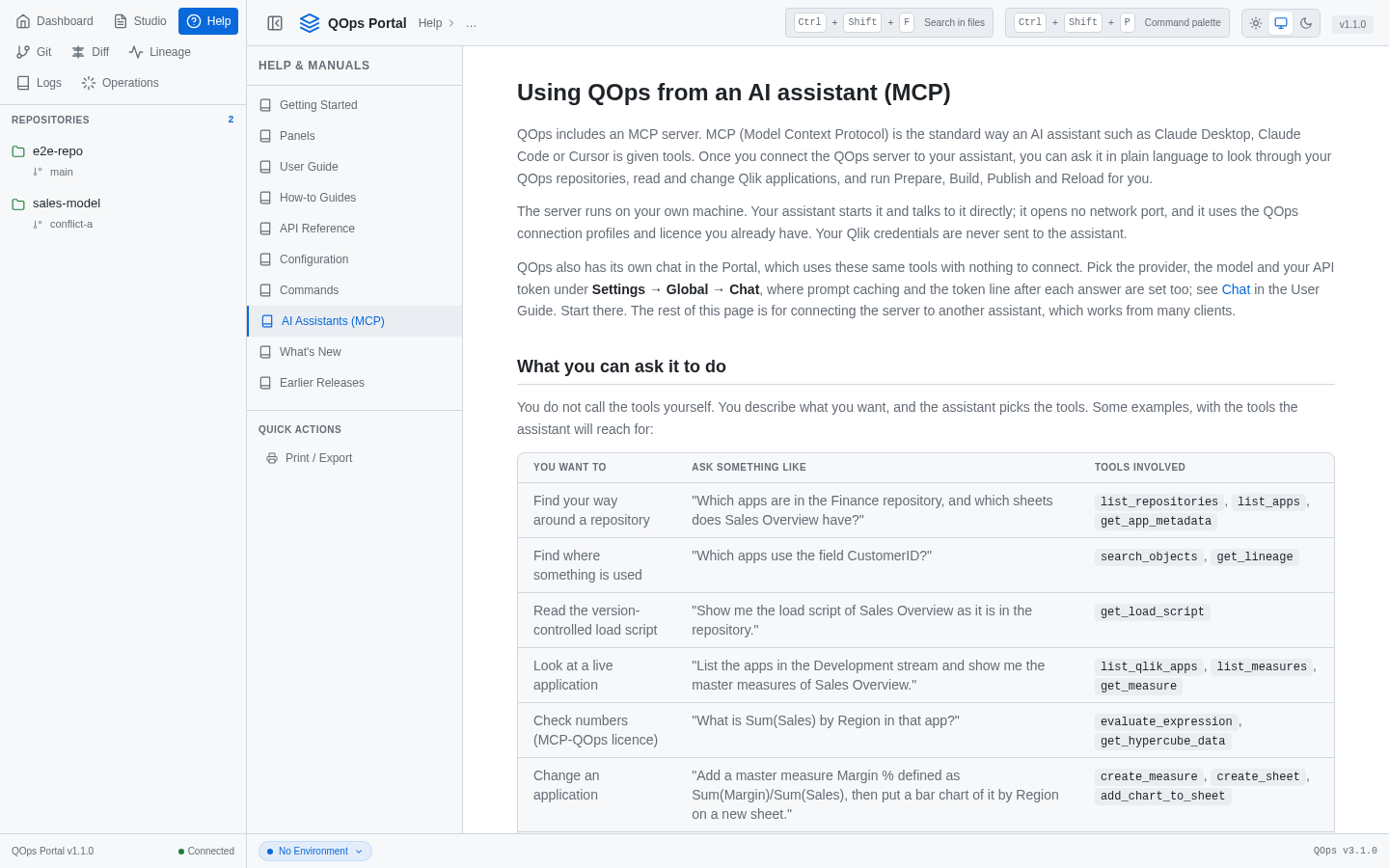
The Help panel has a full page on this, with the settings to paste for each assistant.
What the base level can do
- Repositories: which apps and sheets a repository has, where a field is used, and what the version-controlled load script says.
- Live apps: list apps, read master measures, sheets and charts on Qlik Sense or Qlik Cloud.
- Build and change: create master items, variables, sheets and charts, and edit the load script. Charts cover bar, line, combo, pie, table, KPI, scatter, gauge, treemap and pivot table. Refer to master measures by their names, for example "Total Sales and Order Count as bars, Average Order as a line on a second axis".
- Share a sheet: on Qlik Cloud, ask the assistant to make a sheet public.
- Run QOps: Prepare, Build, Publish and Reload in a repository folder, exactly as the commands do.
Two licence levels
There are two licence levels.
- QOps licence. Covers every tool except the analytic ones. The assistant can read how an app is built, create and change sheets, charts and master items, and run QOps, but data values are left out of what it sees.
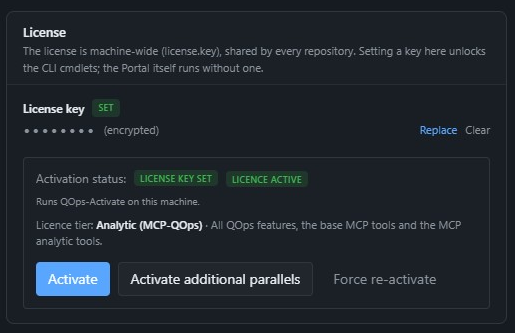
- Analytic level (MCP-QOps licence). Includes all of QOps and adds the analytic tools, which let the assistant calculate from the data in an app: field values, calculated expressions and selections.
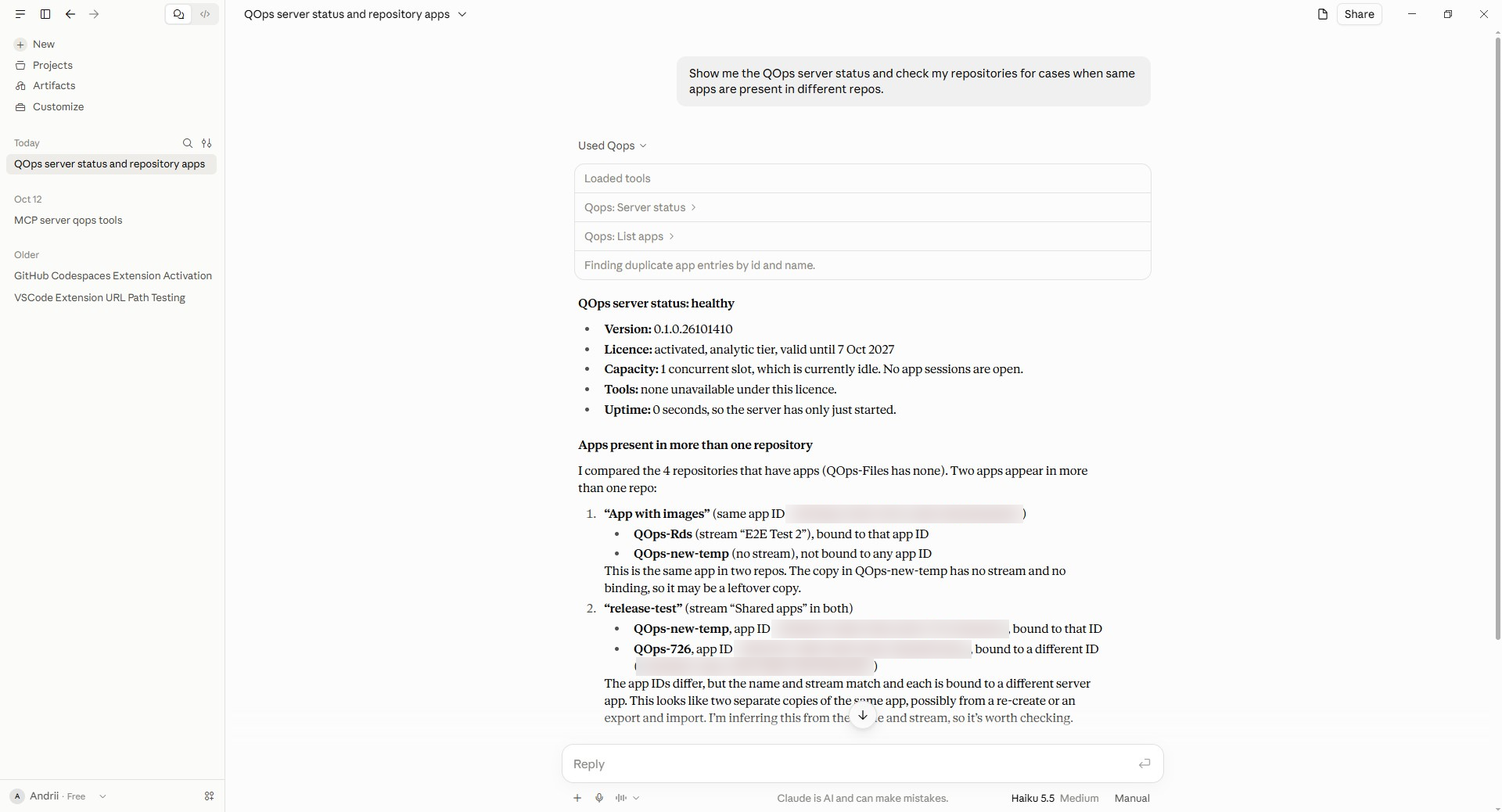
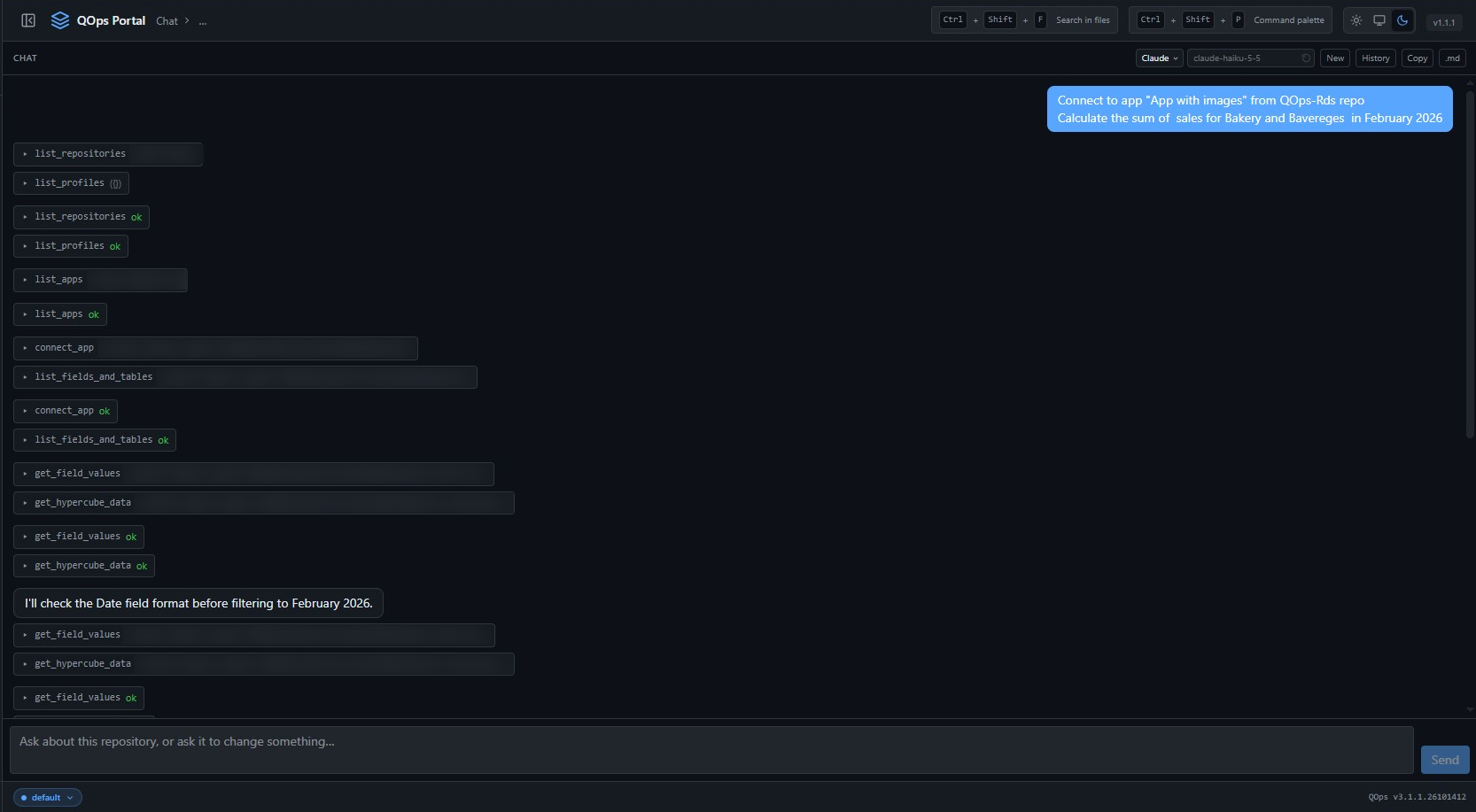
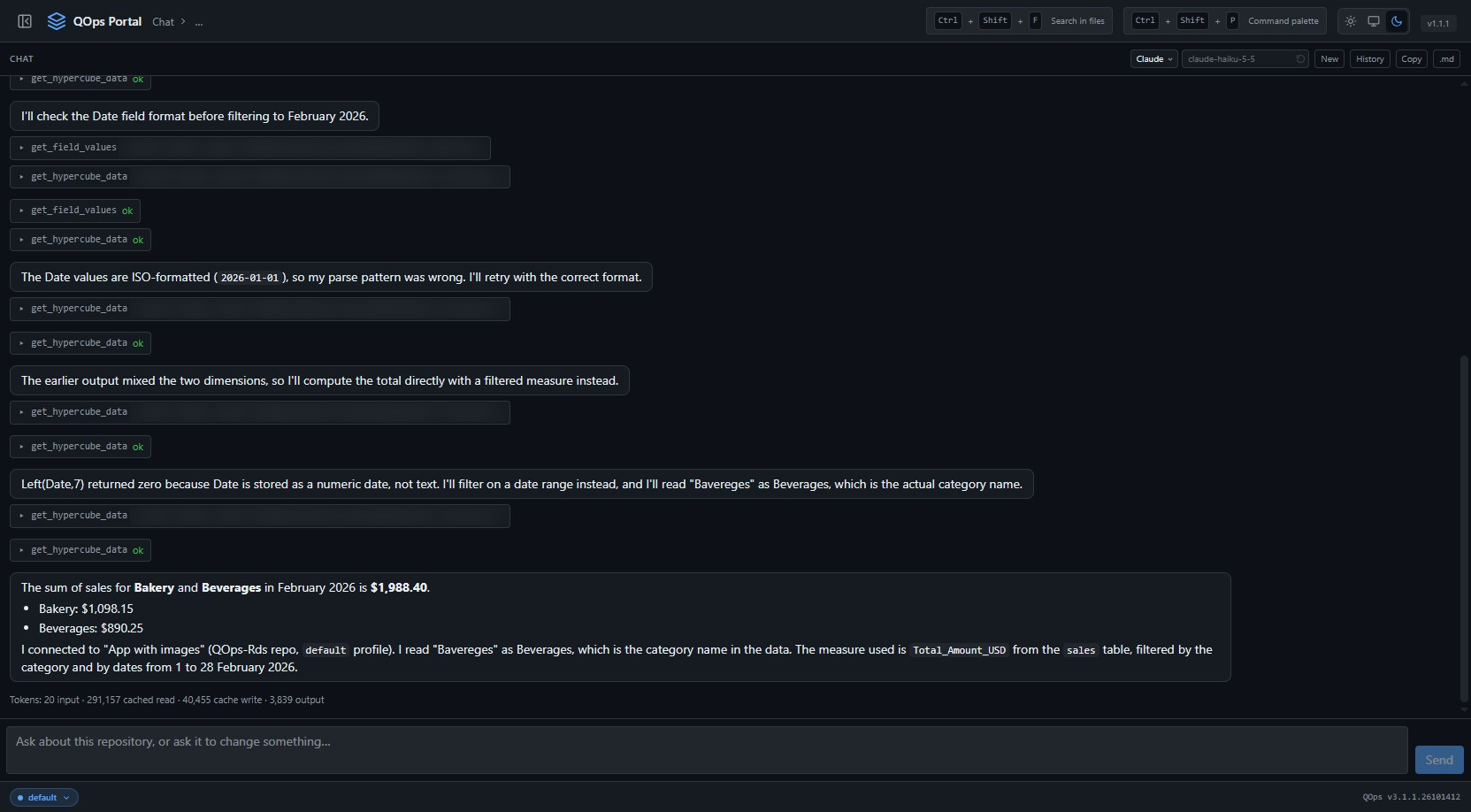
For example, with the Analytic level you can ask "Connect to App with images from the QOps-Rds repo and calculate the sum of sales for Bakery and Beverages in February 2026". The assistant looks up the fields, checks how dates are stored, filters by category and date range and returns the totals.
Settings, Global, License shows your level.
Safety you control
You can ask the assistant for each of these in plain words.
- Read-only. Connect to an app read-only and every tool that would change it is refused.
- Checked writes. After each write the assistant reads the result back. It reports a broken expression, a chart that cannot draw, or a change that was not stored as sent.
- One save for several changes. Keep changes in the open session and save once at the end.
- Deleting an app needs the app's Id repeated as confirmation, and cannot be undone.
No comments yet. Be the first to share your thoughts!
Leave a comment